There are many reasons you might want to set up your own FTP server, you want access to files when you are not in the office or home. But what many people don’t know is that winthin Windows 7 has a built in FTP server to it, and to activate and confgure it is easier than you might think.
1. Go to Start ->Control Panel -> Programs. Then click on “Turn Windows features On or Off”.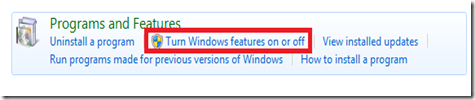
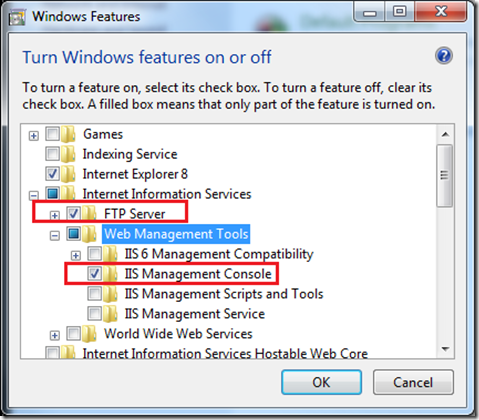
2. Now from the list that opens, locate the option for Internet Information Services and select FTP Server. Expand Web Management Tools and Select the Management Console also, so you can manage the FTP Server.
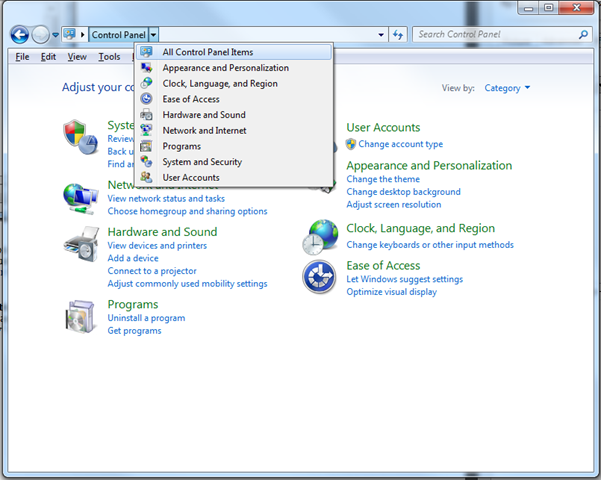
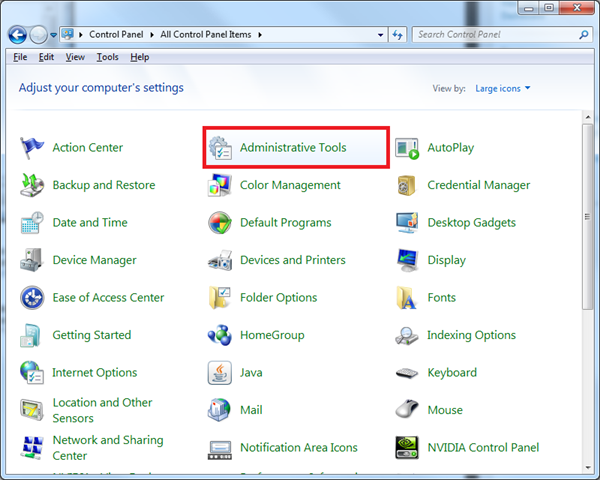
3. Open the Control Panel on your system. Click the arrow next to control panel and select “All Control Panel Items”
4. Then Select the Administrative Tools:
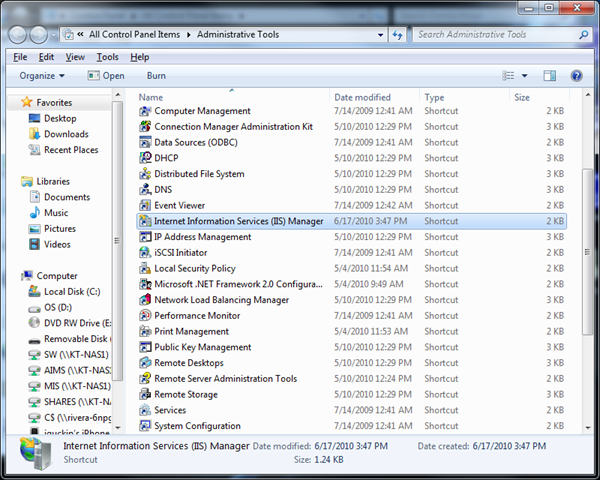
5.When the Administrative Tools window comes up, Select the “Internet Information Services (IIS) Manager:
6. You can now see a new window with lot of settings / options in it categorized separately under FTP and IIS.
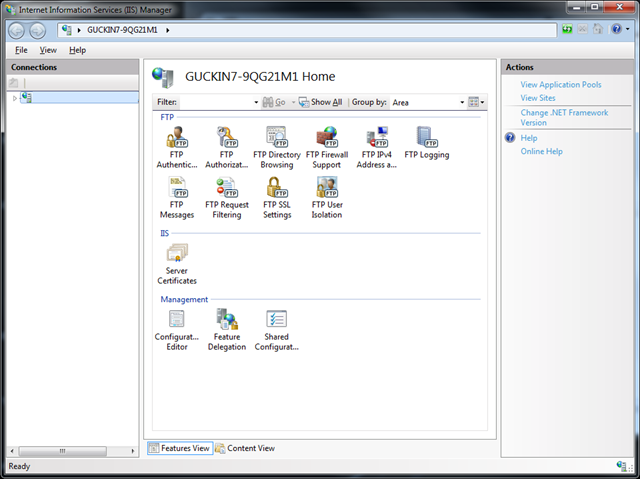
7. The icons under FTP help you to manage the settings of your FTP server, this is where you can set up Authorization of access, firewall rules, managing access logs and more. So make sure that you have all your setting are set up exactly the way you want them.